
Videos generated via the plugin’s AI module are received directly from the provider’s model – API calls are not routed through any other service. Responses are saved locally into a temporary folder inside WordPress’ uploads directory. From the saved local directory, generated videos can be viewed and uploaded into WordPress’ media library as a standard WordPress media item. The saved responses can also be deleted.
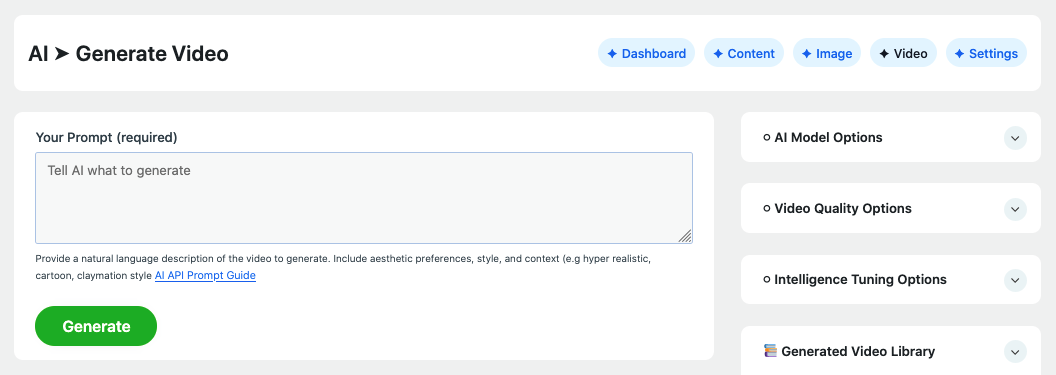
User controls and configuration options are grouped into six categories on the video generation page:
1. User Prompt
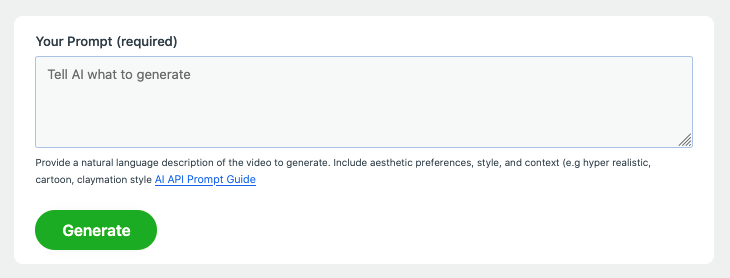
The prompt field accepts user instructions, guiding the model on how to generate the video, including content, quality and other properties.
2. AI Model Options
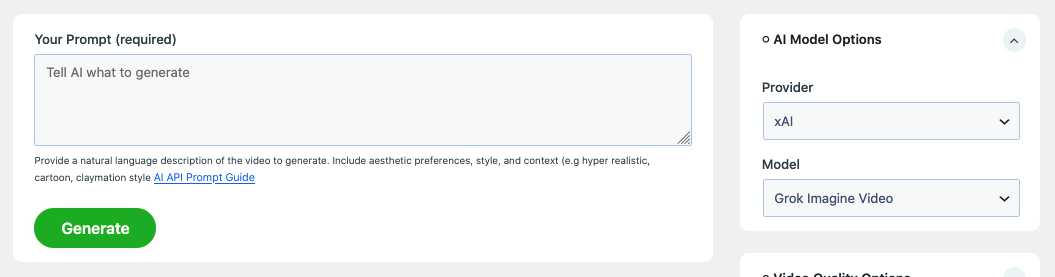
Select a provider, and a LLM for the video generation. Note that some models may have documented features and characteristics that makes them more appealing for generating specific a types of videos. Information about LLM characteristics and features are available in the model’s documentation, which is usually accessible via provider’s API dashboard.
3. Video Quality Options
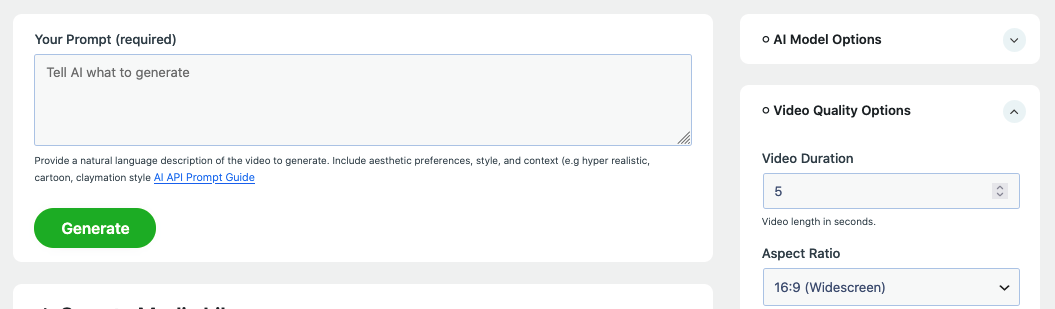
Depending on the selected provider and model, options in this section include image resolution, quality, aspect ration among others.
4. Intelligence Tuning Options
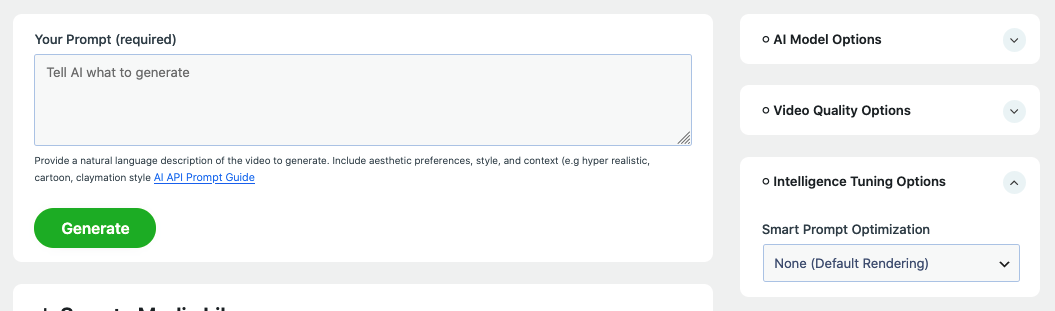
These options are completely optional and can be ignored by some model. When recognized and used by the model, the selection option adds a preset instructions to user’s prompt – allowing the model to generate the video using specific criteria. For example, the video could be generated in a cartoon, anime (manga), cinematic among other styles.
5. Generated Image Library
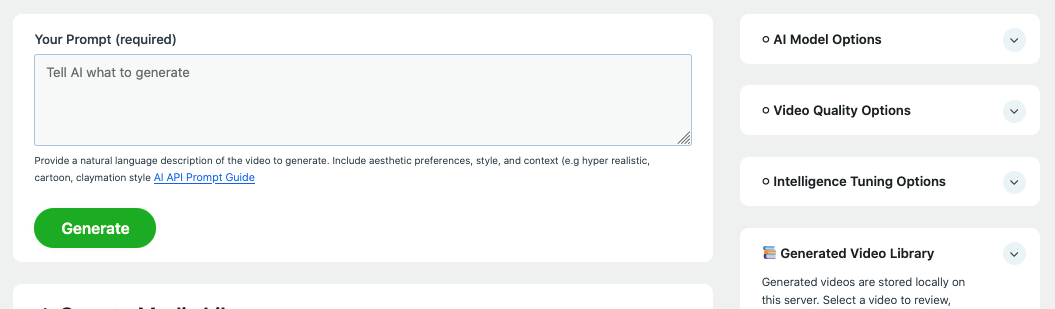
Generated videos are automatically saved locally and are available for future review where the user who generated a video may review, delete, and upload the video into WordPress’ media library for sitewide access.
6. Save to Media Library
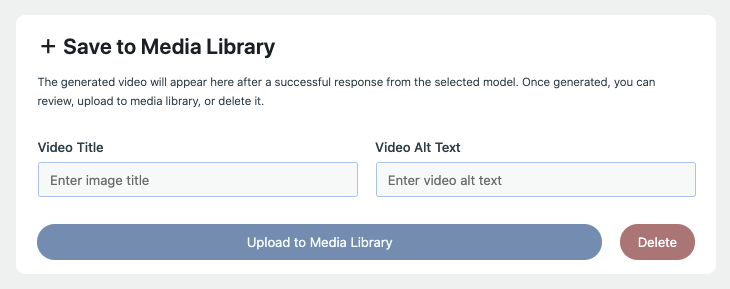
This section allow the user to upload a generated video into WordPress media library. When a video is received from the provider’s API, the video is displayed instantly in the preview area. And a “Upload to Media Library” button which uploads the video to the Media library, when clicked. The section is also used to render videos that were previously saved in the temporary location inside WordPress uploads folder.