
The AI module of the plugin serves as a tool for sending and receiving API requests and responses to and from API (endpoints) published by multiple AI providers. The plugin is equipped with capability to communicate with multiple providers to generate content, images, and video via direct API calls.
It features friendly user interface and customisation options. For each generation request, the user is equipped to select a provider, choose a preferred LLM, add custom prompt, and configure other options that align with the LLM’s configurations. With this level of flexibility, the users is empowered to tune the request and can expect high quality responses, depending on the provider and LLM’s characteristics and capabilities.
All API calls are sent directly to the provider’s endpoint. Responses from provider’s endpoints are received and processed directly by user’s WordPress server. All generation activities are between user’s WordPress server and the AI provider’s endpoints, the plugin developer does not participate in the generation.
The following content can be generated upon configuring API keys and selecting the desired provider and models:
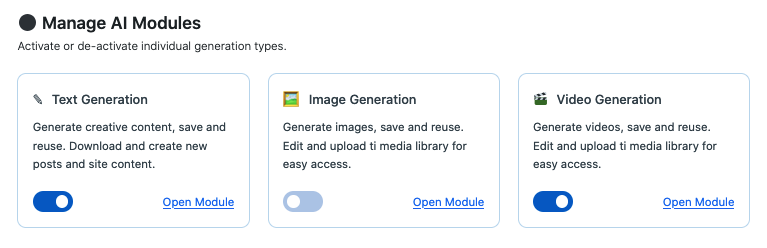
- Text Generation: add article title, prompt, and configure other optional settings to generate various content types including blog posts, product descriptions, page content, recipes. Articles are saved locally for easy management such as delete, export and WP posts creation.
- Image Generation: generate images from selected providers and models, using custom prompts and with LLM configuration options. Assets are saved locally, ready to upload to media library and can be deleted.
- Video Generation: custom videos can be requested with – add a custom prompt, set duration, resolution and other provider options to improve quality. Generated videos are saved locally, ready to upload to media library and can be deleted.
The configuration options allows making direct API calls to LLMs to generate content, image and video. The following providers are currently supported:
| Provider | API Dashboard | Homepage |
|---|---|---|
| Gemini | Gemini API Dashboard | Gemini Homepage |
| OpenAI | OpenAI API Dashboard | OpenAI Homepage |
| Anthropic (Claude) | Anthropic API Dashboard | Anthropic Homepage |
| xAI | xAI API Dashboard | xAI Homepage |
| Runway | Runway API Dashboard | Runway Homepage |
Provider LLMs.
For each supported provider, the plugin includes a curated list of compatible LLMs that fills the list of models after a provider is selected in the landing page of each generation module.
Getting Started – AI Dashboard
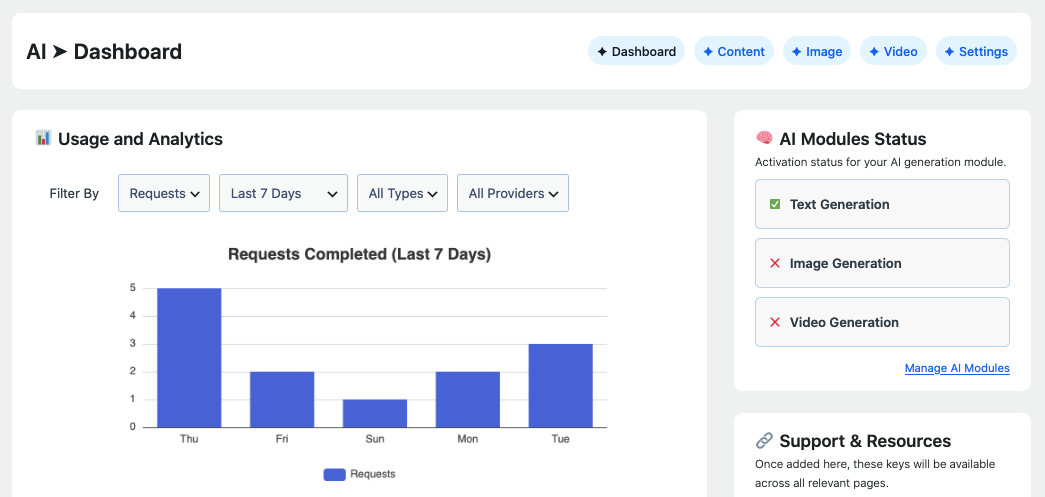
The AI dashboard introduces plugin’s AI capabilities, usage analytics, and modules activation and de-activation options and provide links to access each AI generation module.
AI On-boarding
The AI on-boarding section includes agreements and checklist of important events needed to complete before using the AI features – see below for section details and how to complete the required steps.
Usage and Analytics
The usage and Analytics section provides a usage chart showing detailed generation for the current user over time. This amount of records saved can be controlled by configuring the “Generated Items History Options” in the AI settings page.
AI Usage in the Last 30 Days
A snapshot of the last 30 days costs, requests quantities and the last generated content type.
Manage AI Modules
The AI modules management section renders the activation and de-activation switches, allowing each user to enable or disable each AI generation module.
Getting Started – AI On-Boarding
The first step to using the AI module is completing the on-boarding steps.
- Log in to your WordPress admin dashboard.
- Navigate to plugin => AI => Dashboard.
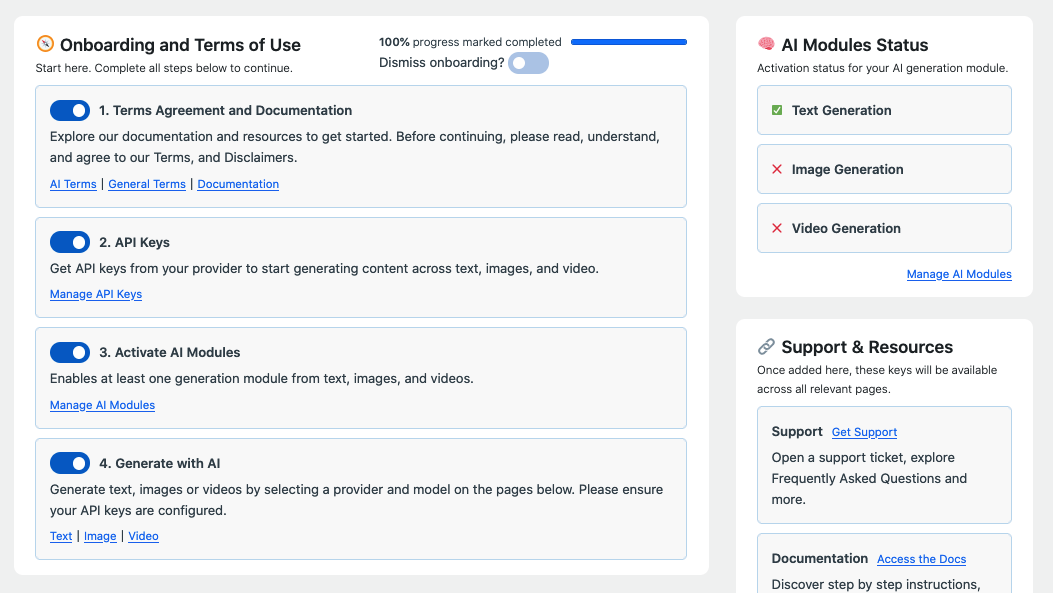
Each AI user must agree and complete the steps in this section to use the generation facilities in the plugin’s AI – the steps include:
- Agree to the plugin’s AI terms – Links are provided to the plugin’s AI-specific terms. Explore the terms of use, privacy policy, and disclaimer. Read and agree to the terms by ticking the corresponding box. Then proceed to step 2 below.
- Configure API keys – Visit each provider’s API console to register, agree to their terms and generate API keys, as desired. Then, add the API keys for the desired providers.
- Activate required AI modules – Active one or all three AI modules – text, Image and Video.
- Generate – the enabled AI module of the plugin should be ready to use at this stage.
AI Settings
The first step to using the AI module is completing the on-boarding steps.
- Log in to your WordPress admin dashboard.
- Navigate to plugin => AI => Settings.
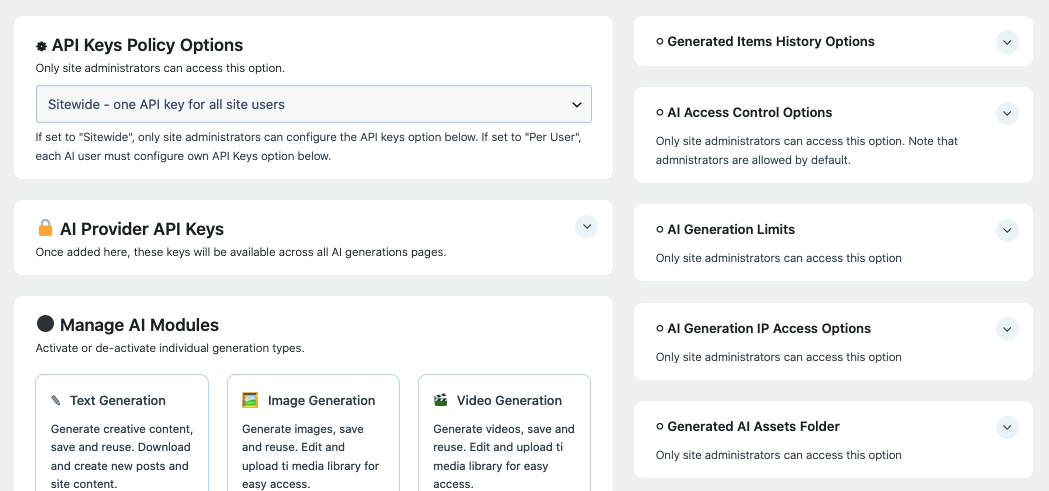
The settings page offers site admins configuration options to control how all AI users interact with the content generation capabilities of the plugin.
API Keys Policy
With this option, a site admin can decide whether each AI user will add own API key per provider, to generate content or whether all AI users will use the same API key per provider. They two options are:
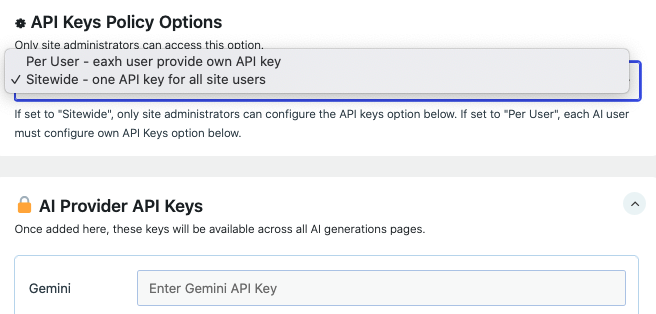
- Sitewide – An admin provides an API for each provider. This API key is used to process all AI transactions in the website, for all AI users.
- Per User – Each AI user provides own API key for each provider. An API key is only configured once. All user’s API calls use the configured API key for all calls to the provider.
API Keys
Depending on the API key policy settings, each user may need to add own API key for each provider. Or, the site admin enters each provider’s API key in the relevant fields.
Generated Items History Options
All successfully generated items (text, images, and videos) are saved locally on user’s server where it can be accessed later to create posts, or upload to media library for images and videos. Each saved item can also be deleted. This option represents the number of items to keep in the local repository – older items are deleted when the number of saved items exceeds this value.
AI Access Control Options
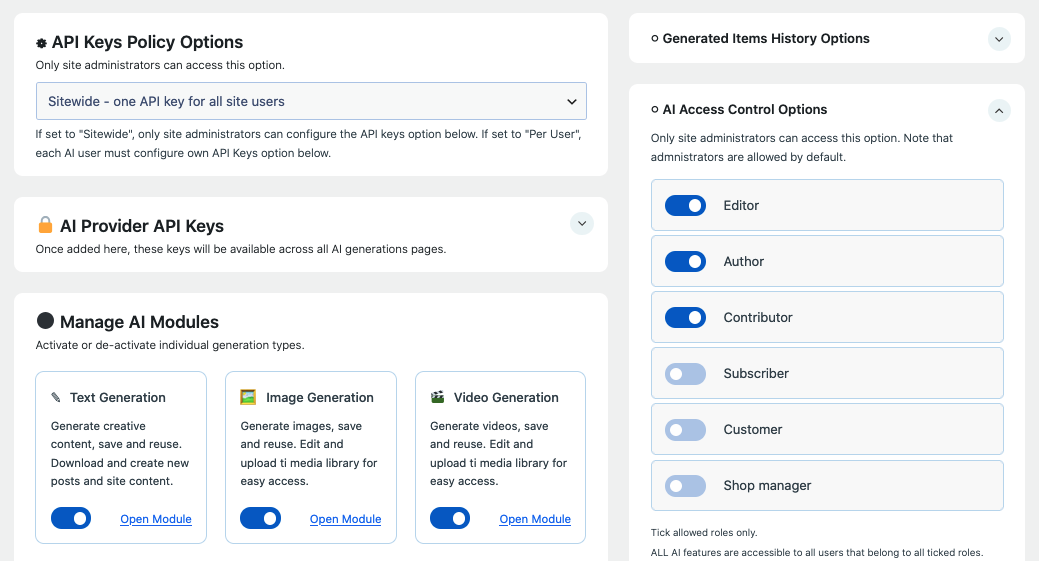
Based on the concept of Role Based Access Control (RBAC), a site admin is required to configure permitted WordPress roles. All site administrators have access to all features by default. But, for all other roles, only users in the allowed roles can access the plugin’s AI features.
AI Generation Limits
This section allows an admin to set the maximum word count and maximum video duration when generating text and video respectively.
AI Generation IP Access Options
Only IP addresses entered in this field are allowed to use the AI – leave this field empty to disable IP whitelistling.
Generated AI Assets Folder
This label displays the path to the folder that holds all generated images and videos. Note that this location cannot be modified.