
WPML is a versatile and powerful translation service for WordPress websites. It can translate any content, including blog posts, WooCommerce products, images, and more. Productive Business is fully compatible with WPML, allowing you to translate both admin and customer-facing content. To start translating Productive Business with WPML, follow these steps.
Step 1: Install WPML
- Purchase the WPML Multilingual CMS package. While other packages are available on the WPML website, this package provides the most resources for translating all aspects of your website, including Productive Business.
- Follow the WPML installation guide to install, activate, and set up your site. During setup, you can choose to translate content automatically or manually assign translations to people or agencies. WPML provides a comprehensive guide and access to support resources.
- Once setup is complete, your website will display translated content in the selected languages. Admin tools also allow you to use translation services or credits for automatic translation.
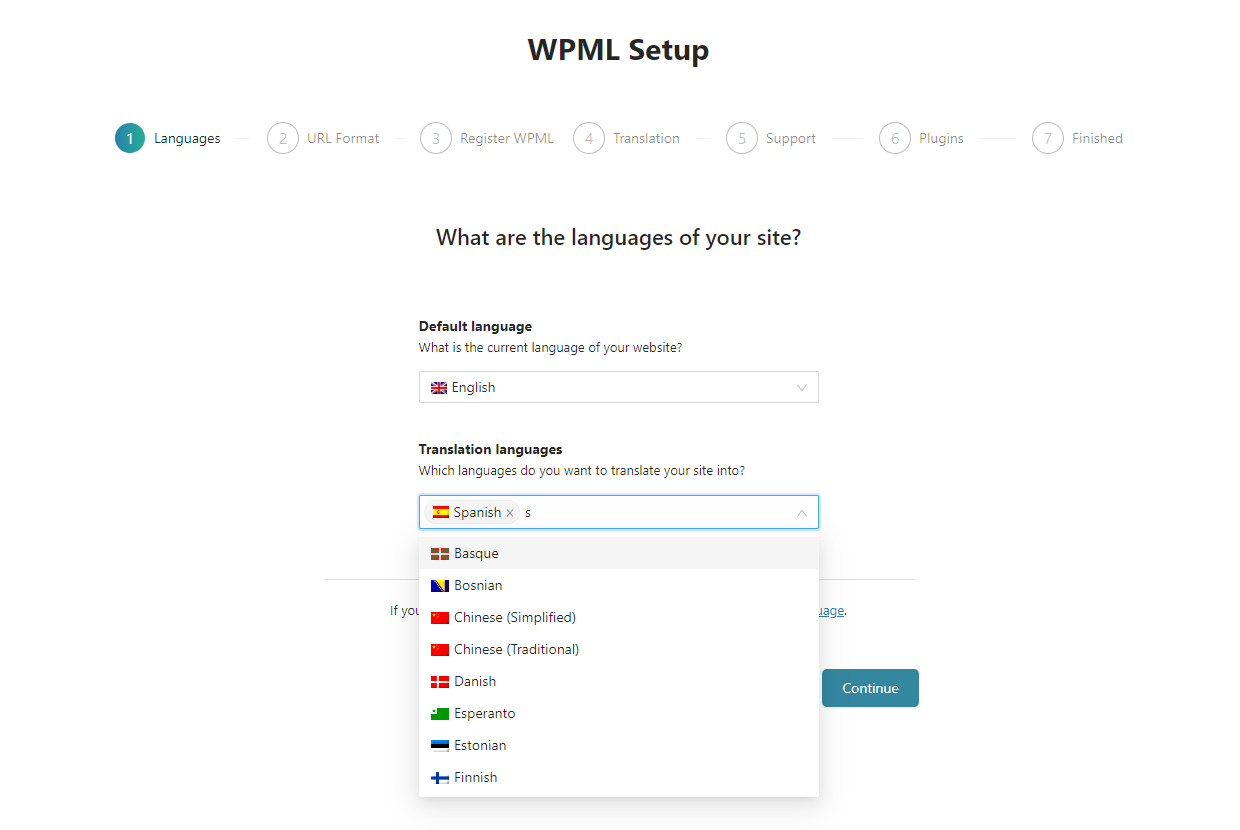
- Below is a screenshot of one of the WPML setup stages.
Step 2: Add Languages
After installation, you can start translating the content of your WordPress website into each language selected during WPML setup. If you need to change the languages supported on your website, you can add or remove languages after the initial setup by navigating to the Languages page as follows:
- Log in to your WordPress website with an admin account.
- Go to WPML → Languages.
Step 3: Scan this Theme for Translatable Strings
Before you can start translating Productive Business, WPML needs to scan the theme to retrieve all content intended for translation. Complete the following tasks to allow WPML to scan the theme for strings:
- Log in to your WordPress website with an admin account.
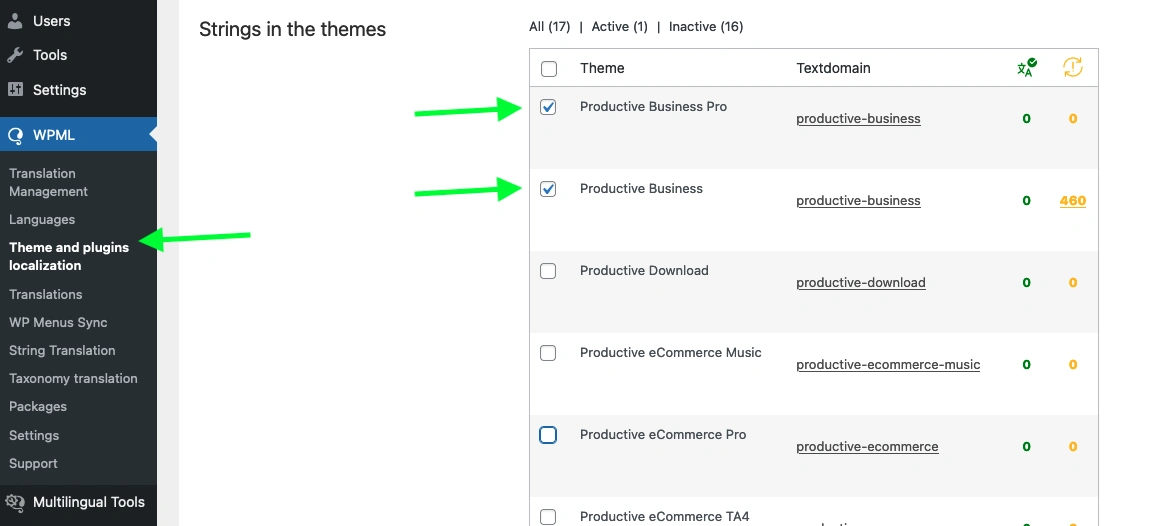
- Go to WPML → Theme and Plugins Localization (see screenshot below).
- Scroll down to the section Strings in the Themes.
- Locate and check the box for Productive Business.
- Scroll to the bottom of the page and click Scan Selected Themes for Strings.
Step 4: Start Translating Productive Business
After scanning, you can translate theme strings:
- Go to WPML → String Translation.
- Select productive-business in the “In Domain” dropdown if needed.
- Click the plus icon next to each string to add translations for the selected language.
If strings do not appear, use the search box to locate them. WPML is user-friendly, but further guidance is available in the WPML documentation.